
Dev Assist
Get expert help when you are stuck, need integrations, or need a fast path through blockers.
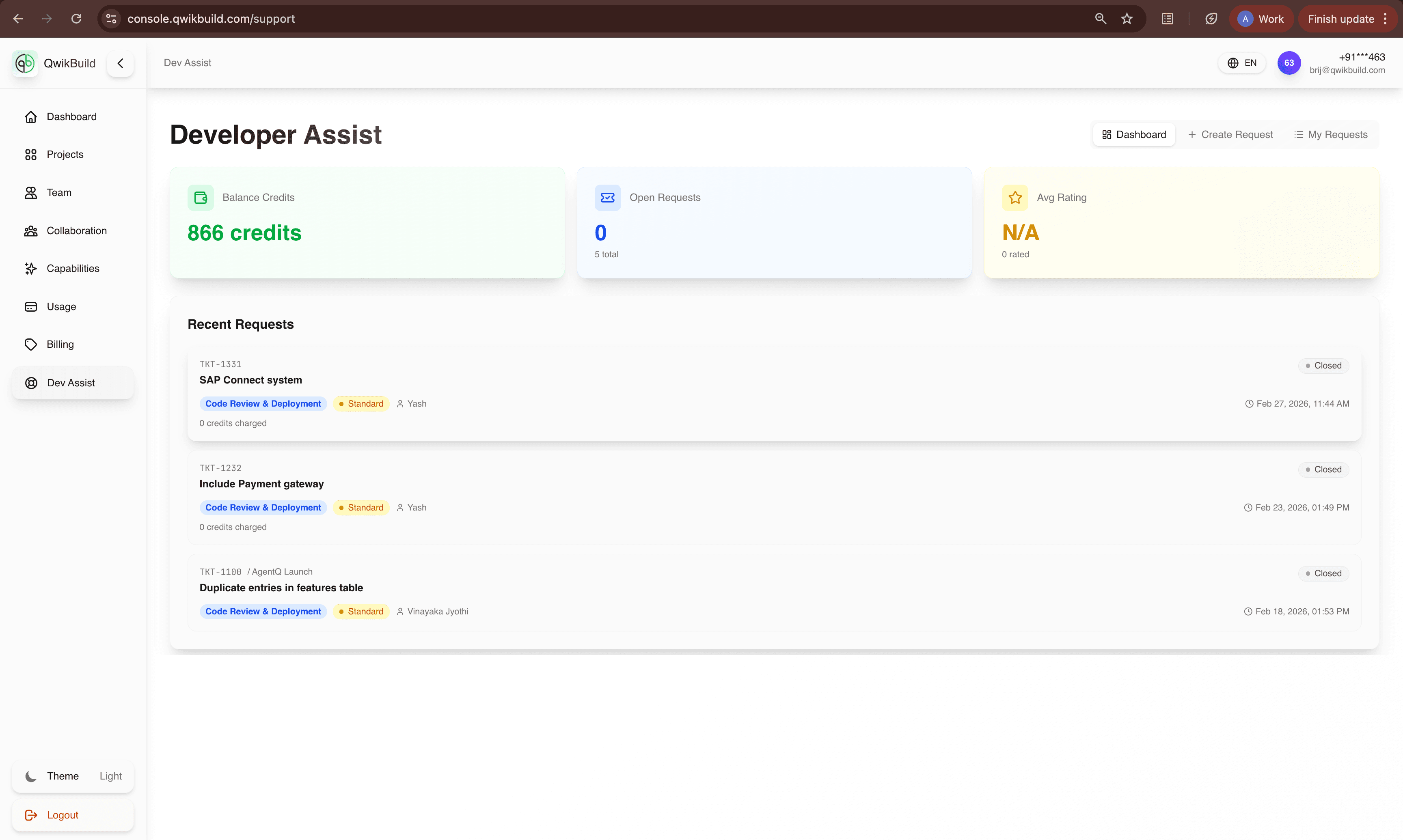
Dev Assist is your built-in support lane. Use it whenever you feel stuck, need help with an external integration, or face a failure that blocks progress.
You do not need to diagnose technical root causes before raising a request. Share what happened, and the team takes it forward.
What You See On This Page
The request form is designed to collect everything needed for quick resolution:
- Subject: one-line title of the issue.
- Description: what you did, what you expected, and what happened.
- Project: choose a specific project, or keep it account-level.
- Capability: optional category to route your request faster.
- Attachments: screenshots, clips, logs, or documents.
- Summary panel: support type, priority, estimated credits, and balance.
When To Use Dev Assist
- You feel stuck after trying one or two focused updates.
- AgentQ repeats the same error or output quality does not improve.
- A launch-critical issue is blocking your team.
- You need external integrations such as payments, CRM, APIs, webhooks, or email systems.
- You need deeper implementation help beyond prompt-level refinement.
Support Types
Choose the support type that matches your goal:
-
Bug Fixes & Debugging (
10-30 credits)
Use for broken behavior, failed actions, and issues that should already work. -
Complex Feature Development (
30-80 credits)
Use for larger functionality, multi-step workflows, and advanced business logic. -
External Service Integration (
40-100 credits)
Use when connecting third-party services like payment gateways, CRM tools, webhooks, or external APIs. -
Code Review & Deployment (
25-50 credits)
Use for production readiness checks, quality review, and safe deployment support.
Priority Levels
- Standard (1x): default for routine improvements and non-blocking issues.
- Priority (2x): for important issues affecting key user flows.
- Urgent (4x): for launch-blocking or business-critical failures.
Choose urgency based on business impact, not frustration level.
How To Submit A Strong Request
- Open Dev Assist and select the closest Support Type.
- Pick the right Priority based on impact and timeline.
- Write a clear Subject that names the issue.
- In Description, include:
- what you were trying to do
- what you expected
- what actually happened
- where it happened (page, action, flow)
- Select the relevant Project (or account-level when cross-project).
- Add attachments that show the problem.
- Review estimated credits in the summary panel, then submit.
Copy-Paste Request Template
Use this template to speed up submission:
- Goal:
- Where it happens:
- Expected behavior:
- Actual behavior:
- Steps to reproduce:
- Impact on users/business:
- Requested timeline:
What Happens Next
- Your request is queued and assigned based on type and priority.
- You can track updates and outcomes from My Requests.
- Add follow-up details to the same request thread rather than creating duplicates.
Common Mistakes To Avoid
- Submitting multiple requests for the same issue.
- Marking everything as urgent when impact is not critical.
- Sharing only "not working" without expected vs actual behavior.
- Skipping attachments for UI or workflow bugs.