
Console Walkthrough
Projects
Create, filter, open, and manage all projects from one place.
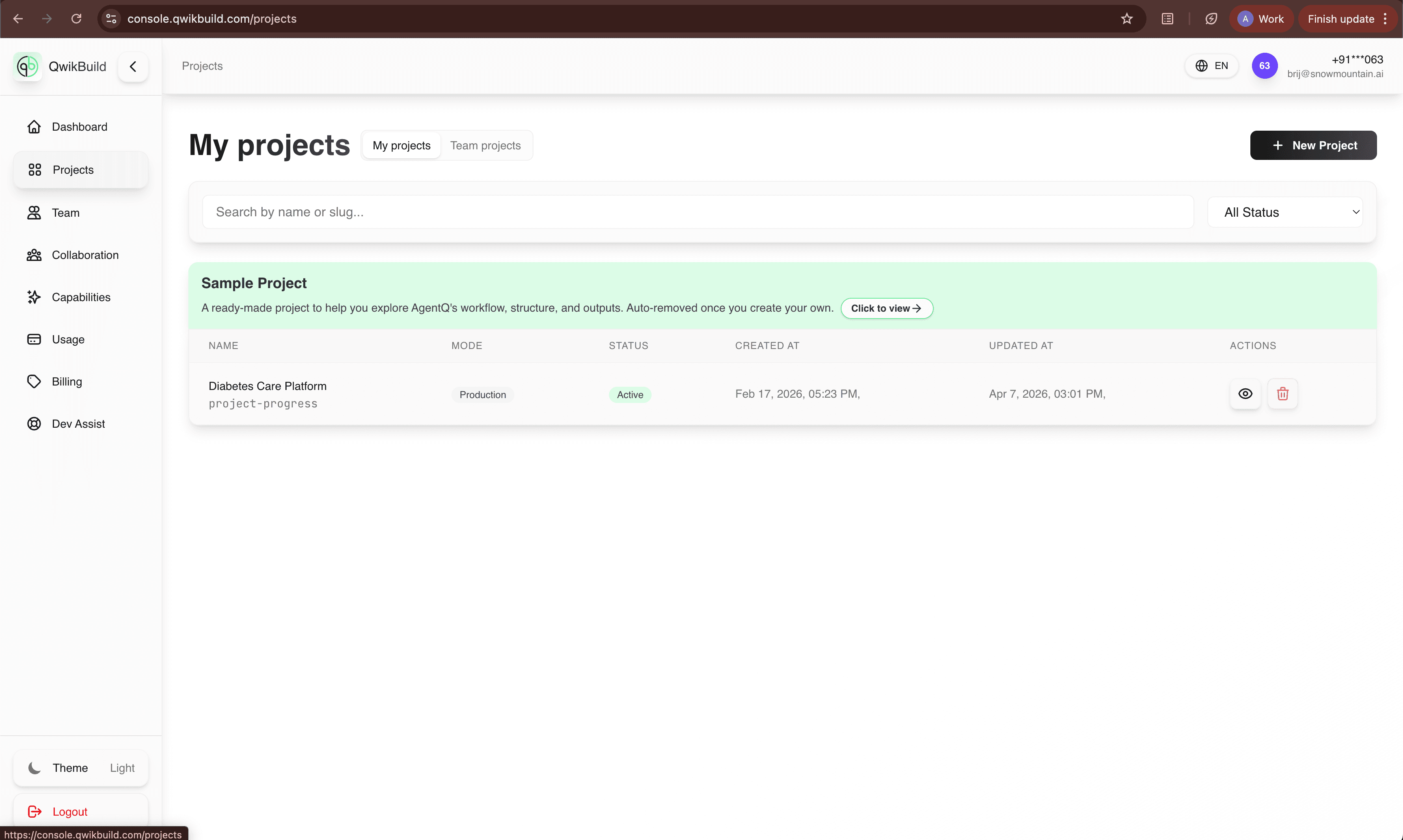
The Projects tab serves as your complete app inventory—listing every project you own or collaborate on in one place. New users will see a sample project designed to help you explore AgentQ’s workflow, structure, and outputs. This sample project is automatically removed once you create your own.
What You See On This Page
- My Projects / Team Projects switch
- Search by project name or slug
- Status filter to narrow the list
- Project rows/cards with key metadata
- New Project action
How To Use It
Create a project
- Click New Project.
- Enter project details.
- Start generation and monitor status.
Find an existing project fast
- Use the search bar.
- Apply status filter if needed.
- Click the project row/card to open details.
View team work
- Switch from My Projects to Team Projects.
- Review shared work owned by your team.
Statuses You May See
- Active: Ready and available.
- In Progress: Build or update currently running.
- Pending: Waiting for execution/resources.
- Failed: Action did not complete; open the project for details.
Best Practices
- Use consistent project naming for easier search.
- Archive/delete old projects to keep the list clean.
- Check status before sharing links with stakeholders.
Troubleshooting
- If the list is empty, verify the correct tab (My vs Team).
- If a project fails to load, retry and then open Dev Assist if needed.