AgentQ Chat
Use AgentQ Chat throughout the project lifecycle to create, update, debug, and expand your app.
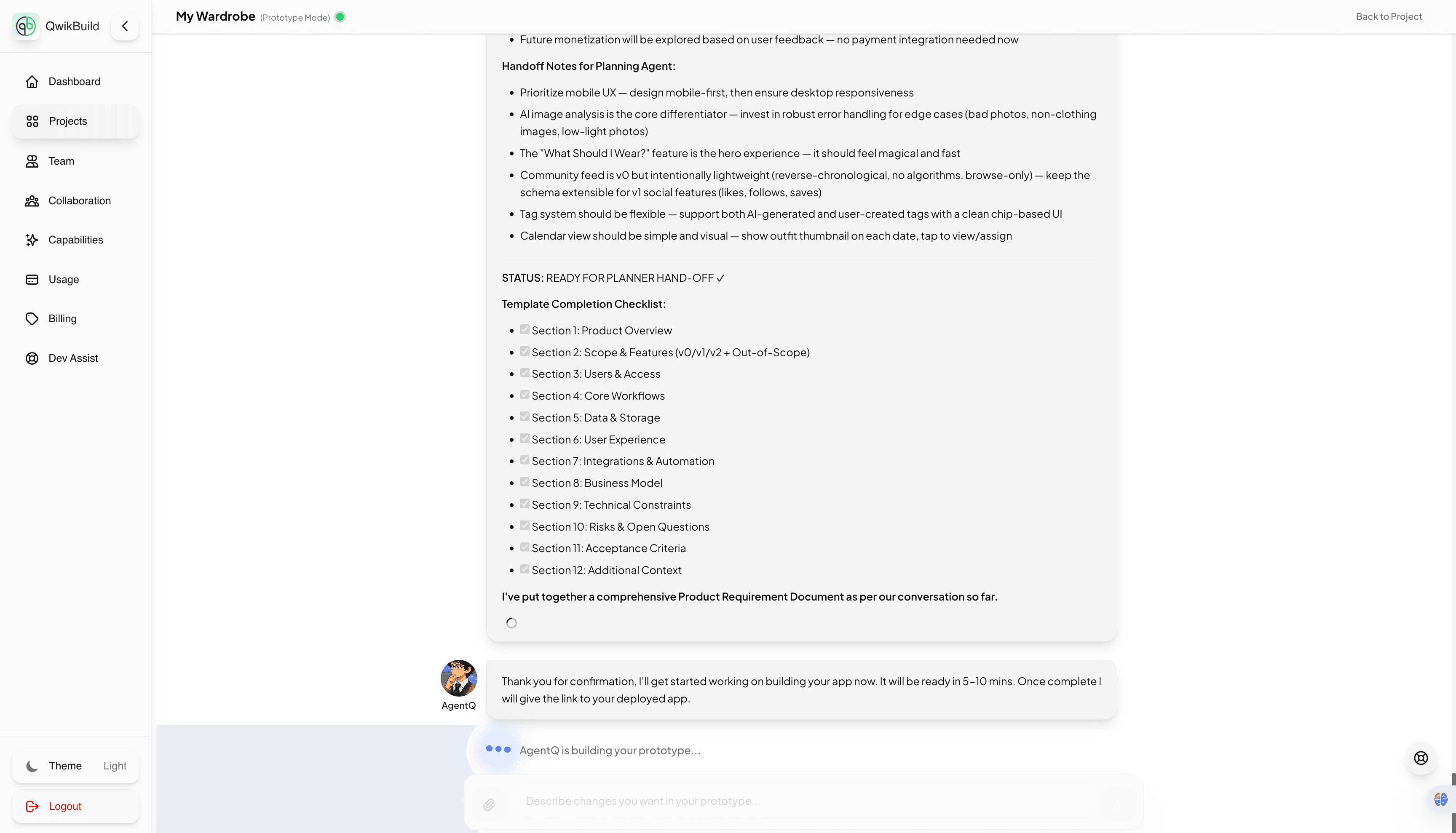
AgentQ Chat is your ongoing project workspace. You use it to create your first version, then return to it after deployment to update flows, fix issues, and add new features.
What You Can Do in AgentQ Chat
- create a new app from initial requirements
- answer clarification questions to reduce ambiguity
- review and approve the generated plan/PRD before generation
- request post-launch updates and feature additions
- report bugs and ask AgentQ to fix them
- iterate continuously without starting a new project each time
New Project to First Build
From the New Project dialog, you can:
- enter a project name
- add requirements in the text box
- upload a reference image
- attach a detailed requirements document
- select Agent Mode: Prototype or Production
After you click Create Project, AgentQ Chat opens and begins requirement processing.
Clarification step
- AgentQ asks targeted questions in MCQ format.
- If options do not match your use case, you can type your own answer.
- Questions typically cover workflow, user roles, data, notifications, and constraints.
Review step
- After clarifications, AgentQ generates a detailed PRD/plan.
- Review carefully before generation because implementation follows this document.
- Approve when accurate, or request changes until it reflects your requirements.
Generation step
- Click Generate App after approval.
- AgentQ acknowledges the request and starts building.
- Typical build time is around 5-10 minutes.
- When complete, AgentQ shares your deployed app link.
Using AgentQ Chat After Deployment
AgentQ Chat remains active for the same project after your app is live. Use the same chat thread to continue product development.
Common post-launch requests:
- "Add a new feature for a different user workflow"
- "Fix this bug in form submission and validation"
- "Update this screen layout and improve UX"
- "Integrate an additional API or automation step"
Best practice:
- describe the expected behavior
- describe the current behavior (if it is a bug)
- include reproduction steps or sample data when possible
Chat vs Visual Feedback Toggle
AgentQ Chat includes a toggle at the bottom of the chat panel to switch between two input modes:
- Chat: the default text-based input for instructions, questions, and clarifications.
- Visual feedback: switches the chat input into pin-and-comment mode against the live preview.
When Visual feedback is selected, you can click anywhere on the preview to pin a comment to that element. Once all comments are added, click Apply comments to send them as a single, structured update to AgentQ.
For full details, see Visual Feedback.
Prototype vs Production Mode
- Prototype mode: best for fast iteration and validation.
- Production mode: best for launch-ready hardening, stability, and release-quality checks.
- E2E testing is available in Production mode.