Console WalkthroughProjects
Traces
Live logs and execution traces from multiple agents working on your project.
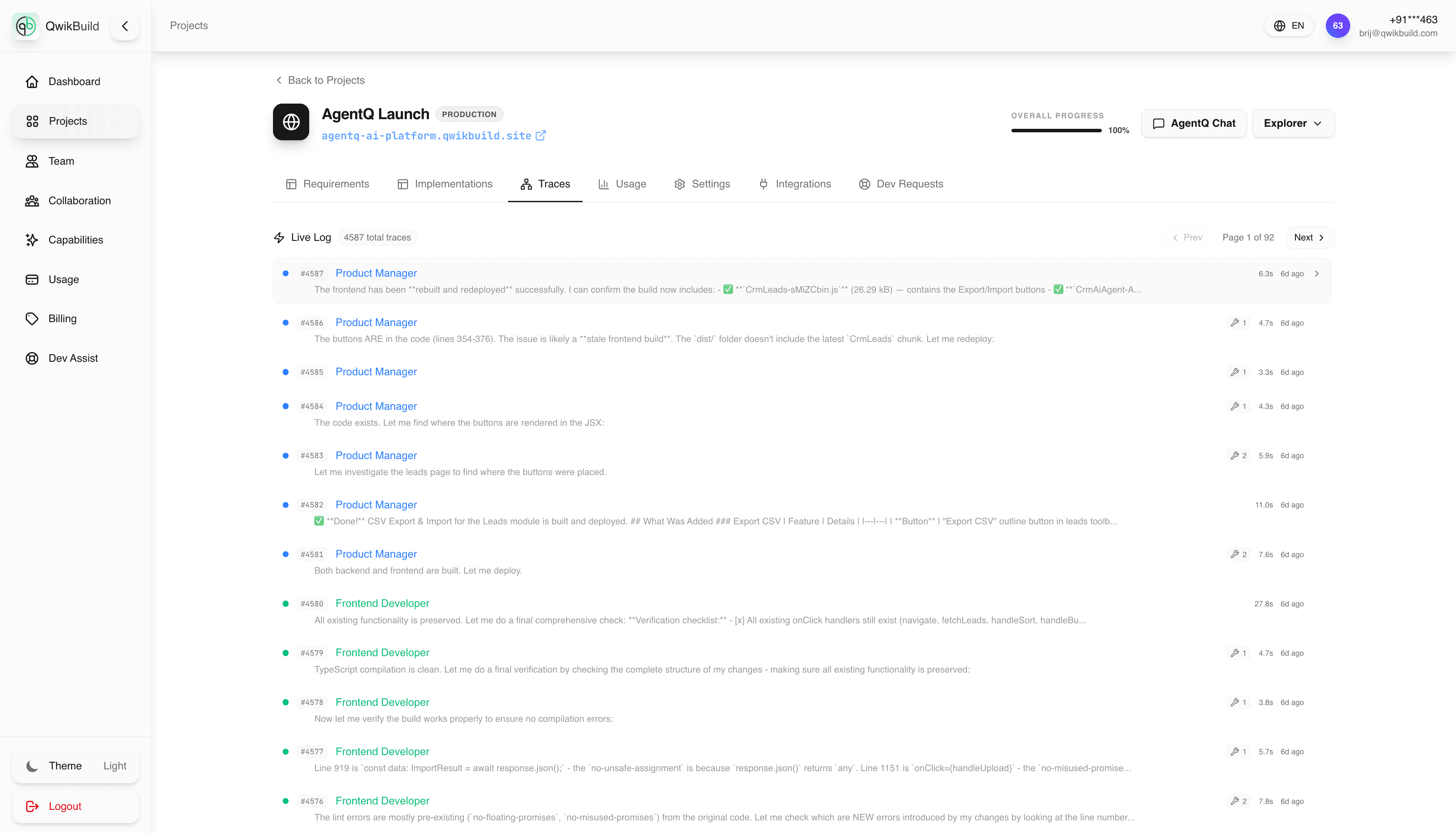
The Traces tab shows live execution output from multiple agents working on your project.
Think of this as a real-time execution window for visibility and troubleshooting.
What You See Here
- Live logs as agents execute tasks
- Activity from different agents/components
- Timeline-style trace output during runs
Why This Tab Matters
- Confirms that execution is active
- Helps identify slow or failing steps
- Gives context when runs appear stuck in Implementations
Typical Workflow
- Start from Implementations and identify the active run.
- Open Traces to monitor live progress.
- Watch for repeated errors or no-output periods.
- If needed, create a Dev Request with trace context.
Best Practices
- Use Traces during active runs, not just after failures.
- Capture key timestamps and messages when escalating issues.
- Pair traces with requirement/run IDs to speed support resolution.